 Disabling the slow iTunes Backup on Windows is a little more tricky, but it works. First of all close ITunes and then follow these steps:
- Locate your iTunesPrefs.xml file. It’s usually located in C:\Documents and Settings\username\Application Data\Apple Computer\iTunes or C:\Documents and Settings\username\Local Settings\Application Data\Apple Computer\iTunes.
Hint: If the folder Application Data does not show up, make sure that hidden files are visible in the Windows Explorer
- Backup your iTunesPrefs.xml file
- Open iTunesPrefs.xml using a capable text-editor (e.g. Notepad++, Ultraedit, but not MS Notepad)
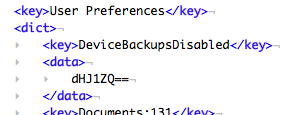
- Search for a section called User Preferences and paste the following snipped into the User Preferences Section after the first <dict>:
<key>DeviceBackupsDisabled</key>

<data>

dHJ1ZQ==

</data>
After you've done that it should exactly look like the screenshot on the left.
- Save the file and restart iTunes. Backups should now be disabled. To enable backups again delete the XML Snippet from iTunesPrefs.xml file.



July 30th, 2008 at 4:40 pm
Thanks for the tip. Have dugg for you. 🙂
July 31st, 2008 at 9:14 am
How do you do this on a Mac?
August 1st, 2008 at 6:29 pm
My iTunesPrefs.xml file only has a Machine Preferences section, the rest is all garbage. Tried opening it in Notepad++ and Dreamweaver.
August 3rd, 2008 at 2:15 pm
Make sure you use an XML editor otherwise you will just see the ‘garbage’ which is the data itself.
Also if you are on Vista you will need to goto C:\Users\$USER$\AppData\Roaming\Apple Computer\iTunes where $USER$ is your username
August 7th, 2008 at 1:23 am
ok, found it, did it, and itunes crashes everytime i open it. ah well, thanks anyways.
August 9th, 2008 at 9:07 am
@ Ben
Mac Users can download a Mac .app here:
http://www.eidac.de/?p=50
@ jmh
If you noticed it was mentioned that before starting you “close iTunes”.
August 11th, 2008 at 6:42 pm
My configuration:
Windows XP
iTunes 7.7.1.11
I used ConTEXT to open the XML, made the change and it worked like a charm!
Thank you very much
August 17th, 2008 at 4:48 am
If you want to disable the forced backup, but give yourself the option of backing up the iDevice manually, make one change to the above instructions:
Replace:
DeviceBackupsDisabled
With:
AutomaticDeviceBackupsDisabled
iTunes 7.7.1 is required for this fix. Tested and working here on Vista with iTunes 7.7.1 and iPod Touch 2.0.1.
August 22nd, 2008 at 6:05 pm
Thanks for the tip.
August 24th, 2008 at 9:59 pm
I have written a small Windows program called “iPhone Backup Switch”. The program will allow you to enable and disable the iPhone backup feature in iTunes. I have tested it pretty well in Windows XP and VISTA. There is a backup feature that will backup the iTunes configuration and let you restore a previous version, if something goes wrong. Comes complete with installer and uninstaller.
Get it here:
http://www.microseconds.com/backupswitch.html
Spread the word please!
August 25th, 2008 at 6:54 pm
If you want to disable backup immediately but not permanently, click the “X” at the top of iTunes during the backup process.
August 26th, 2008 at 1:27 am
thank you so much for this. it really helps me save time.
August 29th, 2008 at 6:37 am
@mohrt
That is the best approach. No need to edit XML configs, etc.
September 14th, 2008 at 7:48 am
good job
you are … thank you so much
September 22nd, 2008 at 10:10 am
working for itunes 8?¿
November 17th, 2008 at 7:49 pm
Dennis:
Thx man!!!…Works nicely.
Very good app. 100% recommended
God job!!
WOW!!!
November 22nd, 2008 at 5:42 am
Excellent!! It works!! Thanks!!
February 5th, 2009 at 6:30 pm
hey there,
wanted to thank for your excellent instructions.
did it and it workked.
great job
February 14th, 2009 at 2:45 am
Fantastic help many thanks
March 5th, 2009 at 11:23 am
Thanks. It works in my XP
April 10th, 2009 at 5:57 pm
Awesome. This is extremely useful. I always had to manually click the little “x” to stop the backup. Now I can just click sync and it works flawlessly.
Thanks.
June 14th, 2009 at 6:50 pm
@ Dennis
thanks for the windows app for the enable/disable. My laptop doesn’t even have a “Documents and Settings” in the C drive so I was looking all day for the code before realizing halfway down this page was a perfect tool 😀
August 11th, 2009 at 2:18 pm
Thank you , it works for me .
June 23rd, 2010 at 11:56 am
It works!
Thanks…It is almost killing me whenever it does the backup before sync…because it seems endless…
But now it works! Thanks!
Andys
July 3rd, 2010 at 1:31 pm
I love you, the backup time went from more than 8 hours to 20 seconds 🙂
done in a iPhone 3G 3.1.3, under the section Machine Preferences.
August 7th, 2010 at 3:50 am
A life saver! Thank you!
October 12th, 2010 at 6:23 am
Wow really works for ipad with itunes 10 also
October 18th, 2010 at 3:28 pm
Hey tahts greate for Mac. It works for me..
November 13th, 2010 at 9:43 pm
If any of you are using Windows 7 and can’t find the location, try going to: [C:\Users\Username\AppData\Roaming\Apple Computer\iTunes]
September 16th, 2012 at 1:53 pm
oh man this helped !! finally got rid of the shitty backup..
THNXXX